Before you start
Use case messages when you can open the case. The message action follows case access, not a particular review stage or assignment title. VAT Stamp does not show a separate list of staff roles that can send messages.
A new message from a case goes to the case submitter. A reply to a message sent directly to you goes back to the sender of that message.
Choose how to open messages
Open unread received messages from Dashboard
-
From Dashboard, select the Unread Messages card.
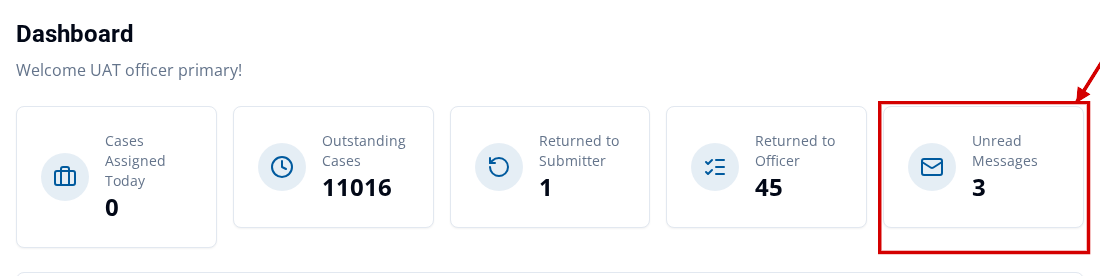
Messages opens with Received Messages selected and Unread Messages turned on. Use this route when you want to start with messages you have not opened.
Open received messages from the header
-
In the signed-in header, select the leftmost control in the group beside your user initials.
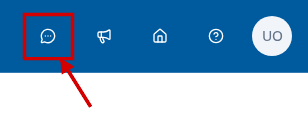
Messages opens with Received Messages selected and Unread Messages turned off. Use this route when you want the full received list.
Open messages for one case
- Select Cases and open a case you can access.
- Open the case's Message section.
-
Read the case-specific rows or select Send Message.
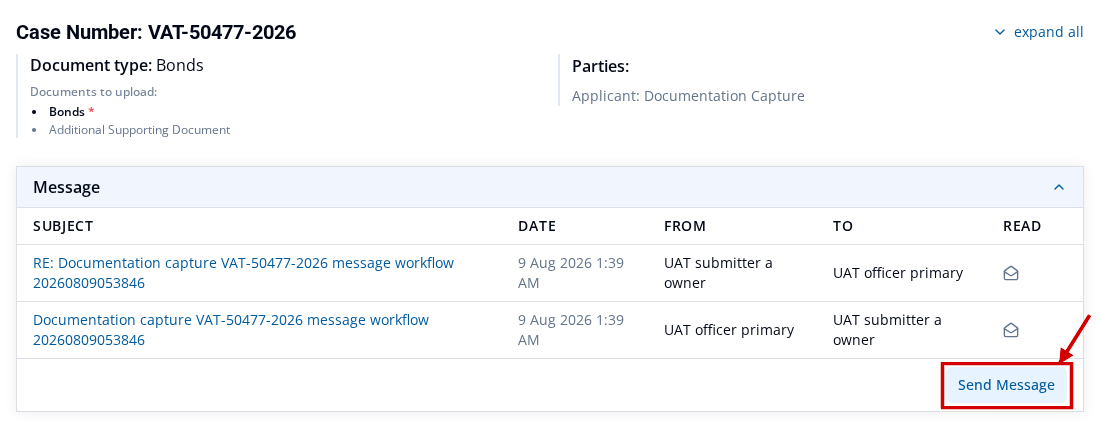
This route stays on the case and shows messages for that case.
Find and read a message
- Open Messages from the Dashboard or header.
- Select Received Messages for messages sent to you, or Sent Messages for messages you sent.
- Turn on Unread Messages to show only unread received messages.
-
Enter a subject, message text, case number, or participant name in Search messages....
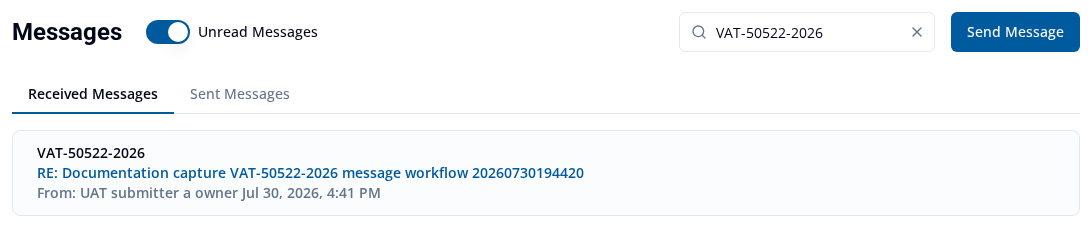
- Check the case number, subject, From or To name, and date in the matching row.
- Open the message.
-
Check its Case Number, subject, From, To, date, and message body.
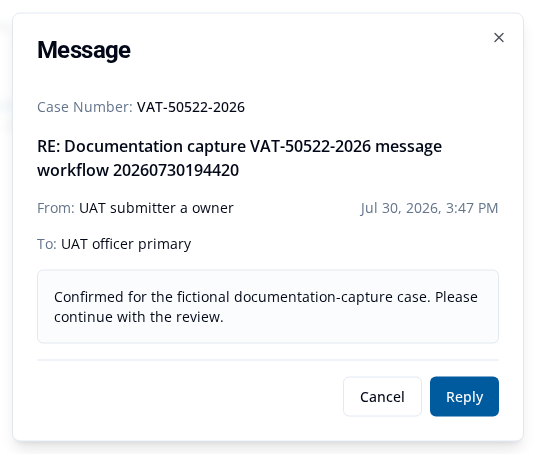
Opening an unread received message marks it as read. If the row disappears, turn off Unread Messages to see it again without unread emphasis.
Send a new case message
Start from Messages
- Open Messages from the Dashboard or header.
- Select Send Message.
- Choose the Case you can access.
- Enter the required Subject Line and Message.
- Review the message and select Send once.
Start from an opened case
- Open the case's Message section.
- Select Send Message.
- Confirm the fixed Case.
-
Enter the required Subject Line and Message.
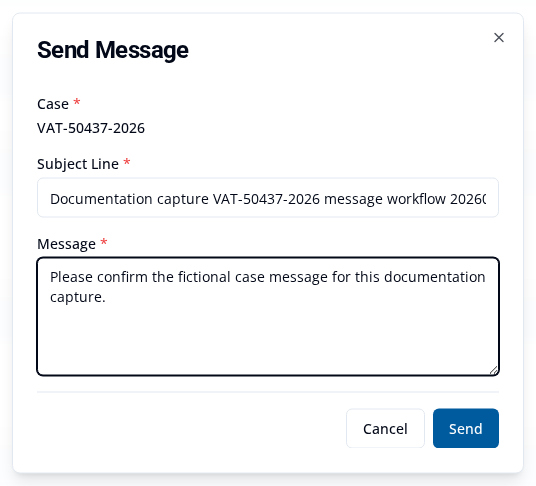
- Review the message and select Send once.
The case route keeps the case fixed and sends the new Staff message to the case submitter. You do not choose a recipient. After either route, VAT Stamp shows Message sent.
Reply to a case message
- Open Received Messages and select a message sent directly to you.
- Select Reply in the opened message.
- In Send Message, confirm the fixed Case and the Subject Line beginning with
RE:. - Enter your reply in the required Message field. If it is empty, the form shows Message is required.
-
Review the reply, then select Send once.
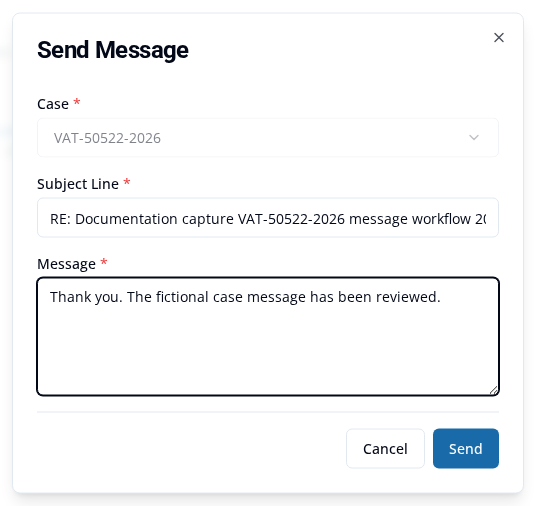
The reply goes to the sender of the opened message. VAT Stamp shows Message sent when the reply succeeds.
Confirm a sent message
- Open Messages and select Sent Messages.
- Enter the case number or subject in Search messages....
- Check the case, subject, To name, and date in the sent row.
The sent row remains available when you return to Messages. Use it as the lasting confirmation that the message was sent. If Message sent did not appear or you cannot find the row, check the required fields before trying again.