When to use Save as Draft
Use Save as Draft when you need to stop and finish the application later. Saving keeps your work and leaves you on the form. It does not submit the application or its package for review.
You can save before the application is complete. The portal can accept a save even when details are still missing.
How to save
-
Enter the information you have. The form lists the details, questions, and documents that your document type needs.
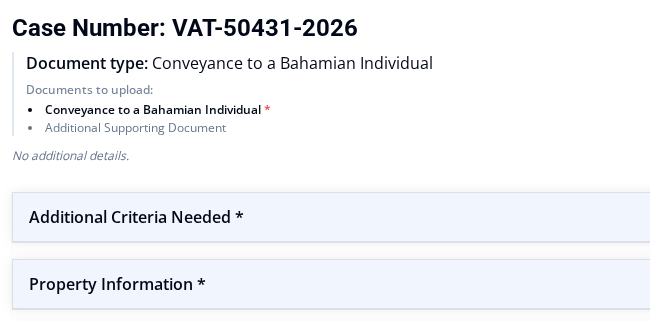
-
Upload any supporting documents that are ready. In the Document Information section, select Upload File next to a document. For a document under Secondary Attachments, select its document type first.
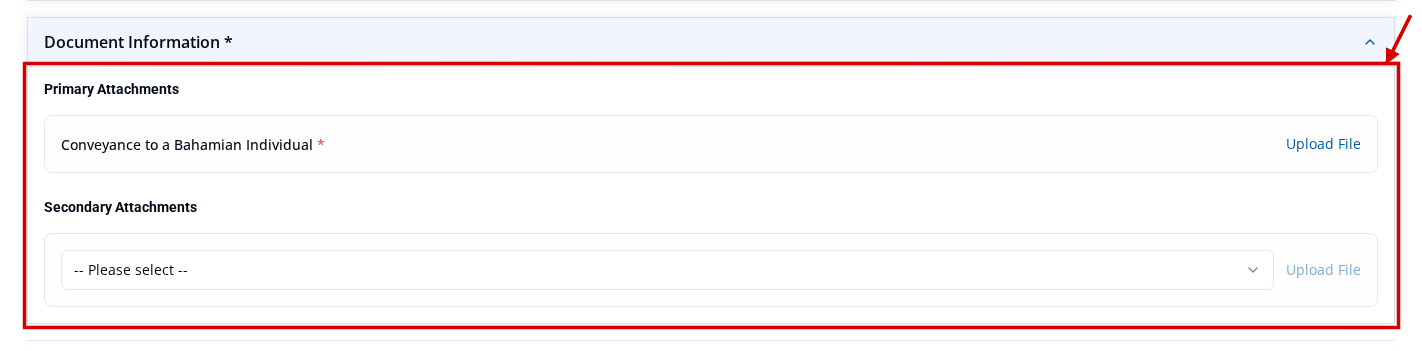
-
Select Save as Draft.
- Wait for the save to finish before you leave the page. The portal shows a brief Draft Saved message when the save completes.
After you save
The application stays in Draft status. You can keep editing it on the same form.
When you return later, select Draft Applications on the top navigation bar of the VAT Stamp portal. You can also open Draft Applications directly. It lists your unsubmitted packages and applications.
A saved draft may still have missing details or supporting documents. The portal can accept a save with warnings, but it does not let you mark the application Ready to Submit until you fix the blocking issues. To learn what to check, see Fix issues that block Ready To Submit.
Saving is not submitting. If you are not sure whether your work was submitted, open Draft Applications. A package listed there has not been submitted yet. Submitted work moves to Applications.
Draft and Ready to Submit are different
Draft means you are still working on the application. Ready to Submit means one application has passed the required checks. It does not mean the package was submitted. Every application in the package must be Ready to Submit before you can submit the package. To make an application ready, see Mark an application Ready To Submit.