Why the application is blocked
Before an application can become Ready To Submit, the portal checks it. The checks look for missing required information, unanswered document criteria questions, and missing required documents. If any check fails, the application is blocked.
The checks depend on your document type. Your application may show different issues from the example in this article.
Find the blocking issues
Select Ready to Submit. If a check fails, a red Validation Errors banner appears near the top of the form. The heading shows the number of issues, for example Validation Errors (4). Each line names one issue to fix.
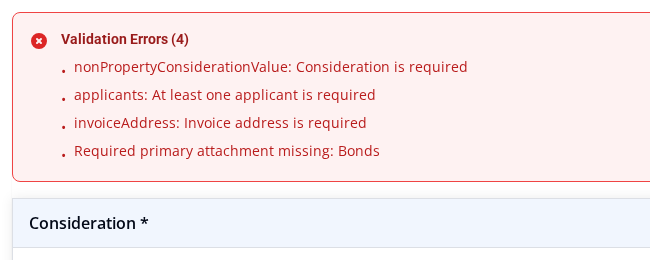
A blocked attempt does not change your application. You stay on the same form. Your entries remain, and the application stays in Draft status. You can fix the issues and try again.
Example: an incomplete Bonds application
This example shows a new Bonds application. Ready to Submit was selected before any details were entered. The banner listed four issues. Treat this as one example. Other document types show their own messages.
nonPropertyConsiderationValue: Consideration is required. The consideration value is missing. Open the Consideration section. Enter the value.applicants: At least one applicant is required. The application does not name an applicant yet. Add at least one applicant.invoiceAddress: Invoice address is required. The application needs an invoice address. Enter it.Required primary attachment missing: Bonds. The Bonds document has not been uploaded yet.
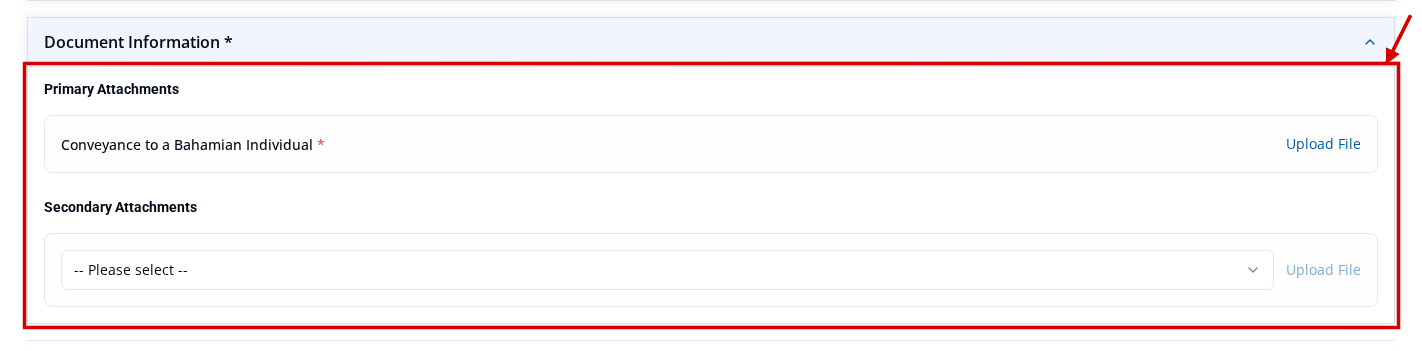
To upload a missing required document, go to the Document Information section. Select Upload File under Primary Attachments. To learn more, see Upload supporting documents. The screenshot below shows a Conveyance to a Bahamian Individual application as an example. The document name in your application may differ.
Fix the issues and try again
Fix each issue that the banner lists. If you need to stop, select Save as Draft to keep your work. Saving does not make the application ready. It does not submit anything. To learn more, see Save an application as a draft.
When you have fixed the issues, select Ready to Submit again. You can try as often as you need. The portal runs the same checks each time. If a check still fails, the banner lists the issues that remain.
When every check passes, the application becomes Ready To Submit. To see what happens next, see Mark an application Ready To Submit.