Before you start
Your application lists the files it needs. The main required file is under Primary Attachments. Your document type may add other prompts. Your criteria answers may add them too. Answer document criteria questions explains these prompts.
Upload a PDF for each required file. You may need more than one file in Secondary Attachments. This depends on the Document Type and Additional Criteria you select. When all required files are in place, your application can become Ready To Submit.
Use a different filename for every file. Files with the same name are blocked across the whole application.
Upload and save a document
- Open your draft from Draft Applications, or start a new application.
- Expand Document Information.
-
Find the named row under Primary Attachments or Secondary Attachments. This example shows a Conveyance application. The Primary Attachment prompt uses the document type as its name.
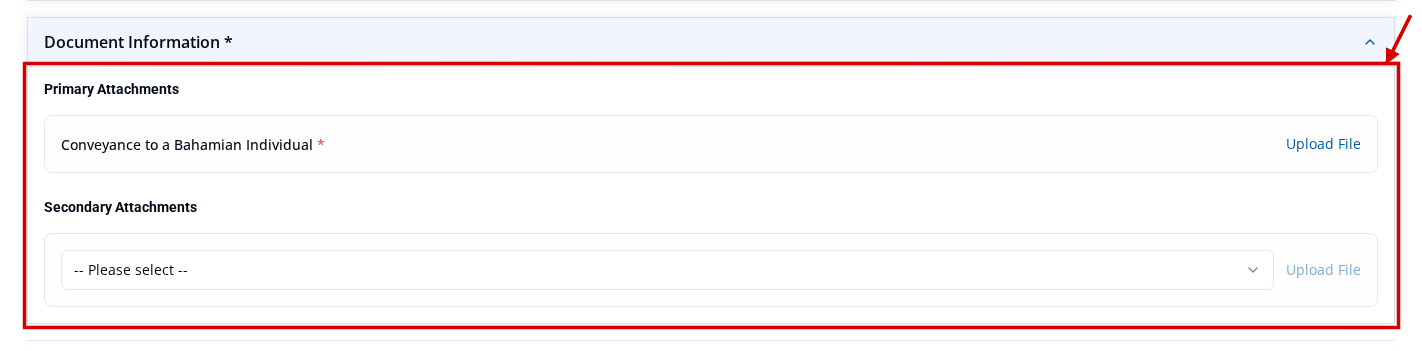
- Select Upload File on that row.
- Choose your PDF file.
- Check that the filename now appears on the row with Remove.
- Select Save as Draft. Saving stores the file with your draft. Save an application as a draft explains saving.
-
Reopen the draft from Draft Applications. Check that the filename is still on the row. This example is from a Bonds application.

IMPORTANT: Some applications require more than one file in Secondary Attachments. Check every upload prompt in the Secondary Attachments drop-down menu. This helps you avoid missing a required file. An asterisk (*) marks each required file.
Remove or replace a file
You can add, remove and replace files in both Draft and Submitter Revision. An attached row shows Remove.
After a case is returned, allowed members of the submitter's organisation can use these same file actions during Submitter Revision. Revise and resubmit a returned application covers returned cases.
What happens next
Your saved draft keeps the uploaded file.
A missing required file can block Ready To Submit. Fix issues that block Ready To Submit explains how to find and fix the missing item.