Before you start
You can add a Comptroller receipt to a saved case. Have these details ready:
- the six-digit receipt number
- a claim amount that is more than zero
- the currency, either USD or BSD
- a PDF copy of the receipt
The amount you enter is your claim. It is not the amount you can spend. VAT Stamp uses the remaining balance on the matching government receipt after staff approve your claim.
The images in this guide use different example receipts for each task.
Add a Comptroller receipt
- Open the saved case.
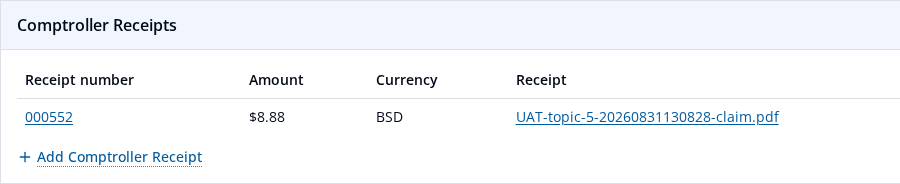
- Find Comptroller Receipts.
-
Select Add Comptroller Receipt.
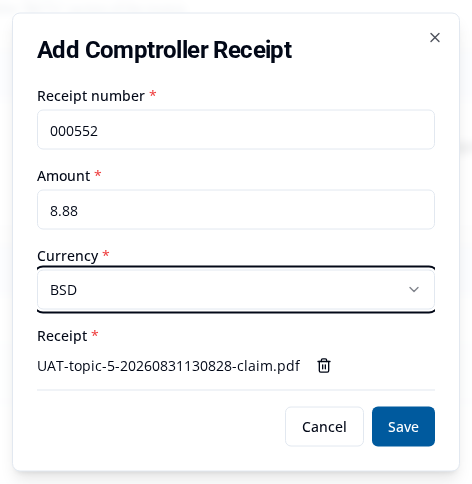
- Enter the six-digit Receipt number.
- Enter the Amount you are claiming.
- Select Currency.
- Under Receipt, select Upload Receipt and choose the PDF.
-
Check the details, then select Save.
VAT Stamp shows Comptroller receipt submitted and says the receipt is waiting for review. This message may appear before the row updates. Check the row under Comptroller Receipts. Its Approval Status should be Unreviewed.

Staff review the receipt before you can use it to pay. Return to the case to check its Approval Status.
Revise a receipt when asked
If staff ask for a change, the case returns to you. The receipt shows Revision Required.
- Open the returned case.
- Find Comptroller Receipts.
- Select the receipt number with Revision Required.
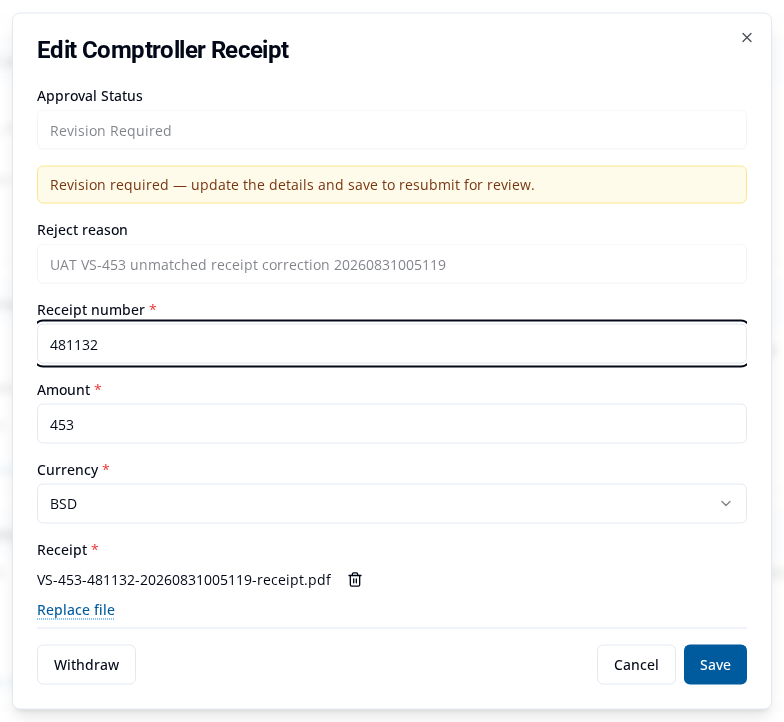
- In Edit Comptroller Receipt, read the Reject reason and the revision message.
- Correct the details named in the reason.
- Keep the current PDF, or select Replace file if the file must change.
-
Select Save.
VAT Stamp shows Comptroller receipt updated and says the receipt is waiting for review. Check the row again. Its Approval Status should return to Unreviewed.

Saving the receipt does not send the case back by itself. Follow Revise and resubmit a returned application to finish the case revision.
Use an approved receipt to pay
Wait until the receipt has the status Approved. The package must have charges in Payment Processing.
- Select Applications on the top navigation bar.
- Find the package you want to pay.
- Select Make Payment. The Online Payment page opens.
- Check Available Comptroller Receipt. This is the approved value that is still available for the package.
- Select each eligible charge you want to pay.
-
Check Selected amount due.
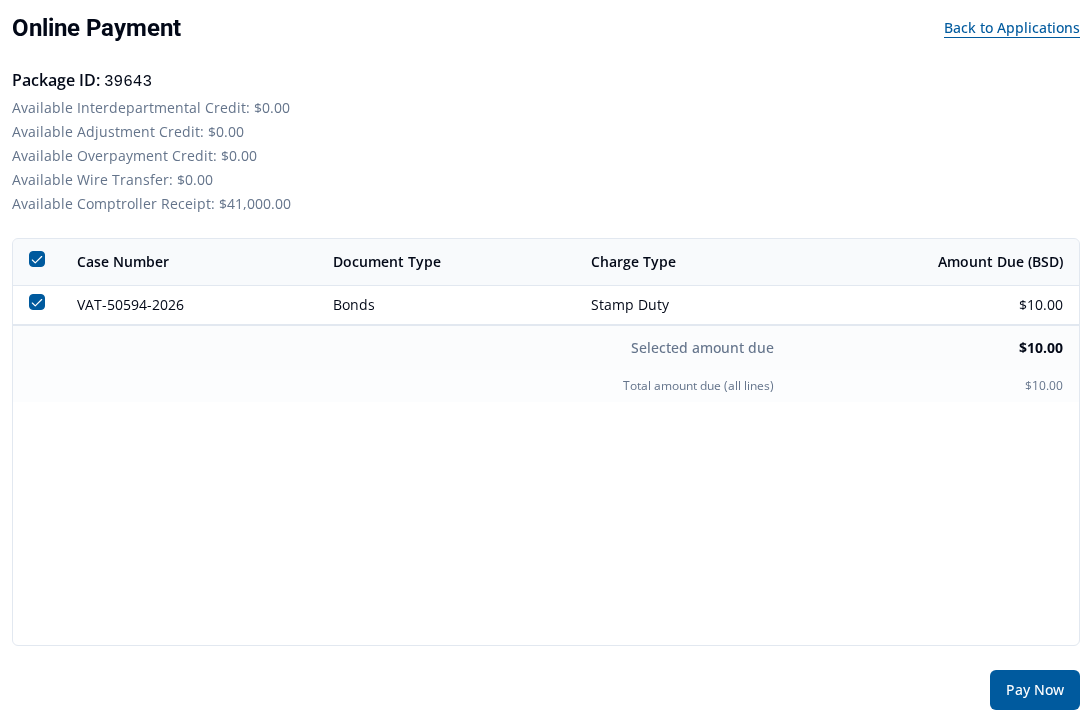
- Select Pay Now.
- In Add Payment, select Comptroller Receipt as the Payment method.
- Under Comptroller receipt, select the receipt you want to use. VAT Stamp shows each source as
receipt number — remaining balance. -
Check Amount Due and Amount. VAT Stamp sets Amount for you. You cannot edit it.
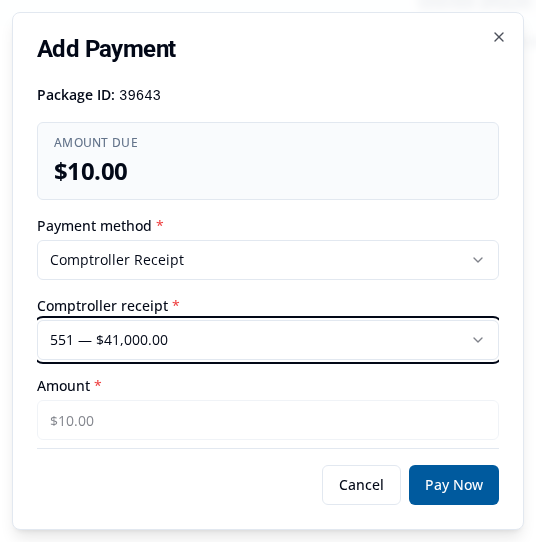
- Select Pay Now once.
For the example payment, VAT Stamp showed:
> Payment recorded > > Payment #22191 for $10.00.
Check the remaining balance
Open the package's Online Payment page again. Check Available Comptroller Receipt. The value should be lower by the amount paid.
In this example, the value changed from $41,000.00 to $40,990.00 after a $10.00 payment.

To get the PDF created for the payment, see View or download payment receipts. The PDF you uploaded with the claim is not the payment receipt.
If you cannot add or use the receipt
- If Add Comptroller Receipt is not shown, save the case first.
- If Save is not available, check that the number has six digits, the amount is more than zero, and a PDF is selected.
- If the status is Revision Required, open the receipt and follow the reason shown.
- If the receipt is not listed for payment, check that its status is Approved and that Available Comptroller Receipt is more than zero.
You can also pay VAT Stamp charges by card.