Before you start
A credit can reduce a selected outstanding charge without using the card payment path. Before you pay, check that the credit appears in your Credits list and has a balance available.
Check the available credit
- Select Transactions on the top navigation bar.
- Select Credits.
- Find the credit you intend to use. Check its Credit Type and Name.
-
Compare its Amount with its Balance. The balance is the amount that remains available. In this example, an Interdepartmental Credit for UAT Org A has an Amount and Balance of
$1.00before payment.
Pay the selected charge
- Select Applications on the top navigation bar.
- Select Package View.
- Find the intended package.
- Select Make Payment on that package's row. The Online Payment page opens.
- Review the charge checkboxes. Clear any charge that you do not intend to pay. Charge rows may already be selected when the page opens.
- Check Selected amount due. This is the amount for the selected charge rows. Total amount due (all lines) includes every outstanding row.
- Select the page-level Pay Now.
- In Payment, select Interdepartmental Credit under Payment method.
- In Credit, select the credit you checked earlier.
-
Check the disabled Amount. VAT Stamp calculates this amount from the selected charges and the credit balance. In this example, the selected Stamp Duty is
$100.00. VAT Stamp applies the available$1.00credit.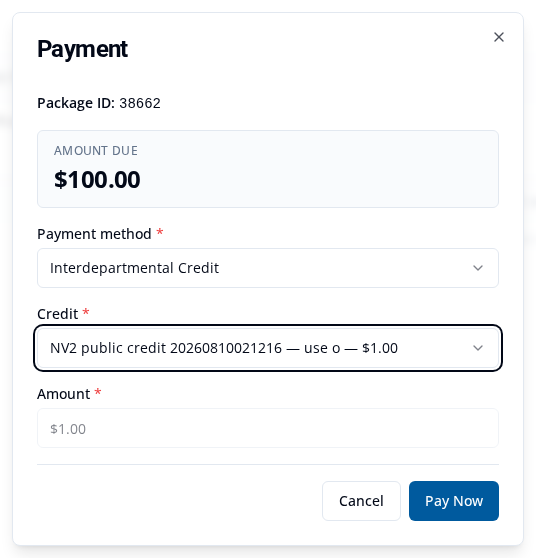
- Select Pay Now in the dialog.
- Wait for Payment recorded.
Find draft and submitted applications explains more ways to search for a package. To use a card instead, see Pay VAT Stamp charges by card.
What happens next
The payment reduces the selected charge by the amount used from the credit. In this example, the Stamp Duty balance changes from $100.00 to $99.00.
Return to Transactions > Credits and check the same credit's Balance. The example credit now has a $0.00 balance because its full $1.00 was used.

For the later receipt task, see View or download payment receipts.