Before you start
The portal keeps your work in two areas. The dividing line is submission. You submit at package level.
- Draft Applications holds packages you have not submitted. Your work stays editable there.
- Applications holds submitted work. Open a case there to check it. You cannot edit it there.
Choose the area by what you want to do. Continue unsubmitted work, or check work you already submitted.
Find and continue draft work
- Select Draft Applications on the top navigation bar.
- Find your package in the list.
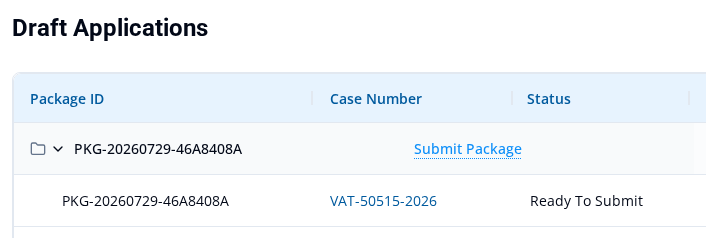
- Expand the package to see its applications. The package actions appear there: Add New Application, Submit Package, and Delete Package.
- Select an application's case number to reopen its editable form.
The package stays in Draft Applications until you submit it. An application with status Ready To Submit is still not submitted. Ready means that one application is complete. The package is only submitted when you select Submit Package.
Mark an application Ready To Submit explains readiness. Add another application to a draft package and Delete a draft application or package explain the package actions.
Find and view submitted work
Select Applications on the top navigation bar. You can filter or search this list, and choose how the results are shown.
Use filters
- Select Filters.
- Choose All Dates under DATE RANGE if you do not want to narrow the list by date.
- Choose My Applications or My Organization under SHOW.
- Choose All, Returned, Requires Payment, or Past Due under STATUS.
-
Check the results behind the filter panel. This example has Requires Payment selected. Other filters may be more useful for the work you need to find.
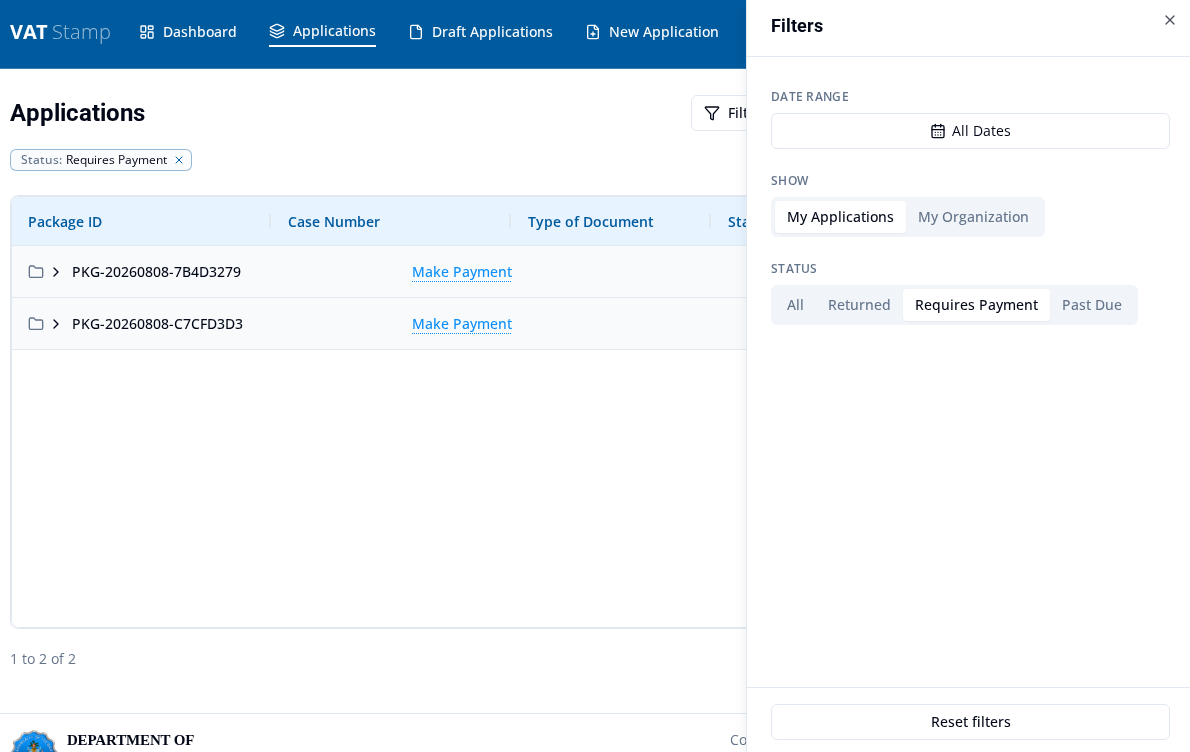
- Select Reset filters when you want to clear the choices.
Use search
- Select Package View.
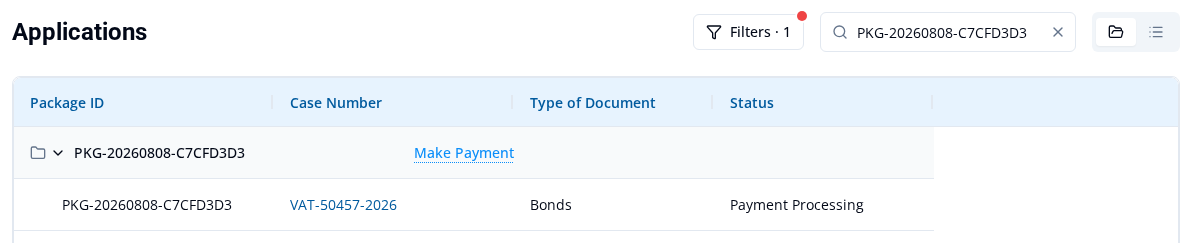
- Enter a known package ID in Search applications....
- Check that the matching package appears.
- Expand the package to see its case row.
In this example, the package ID PKG-20260808-C7CFD3D3 returns its matching package and case.
Choose Package View or Case View
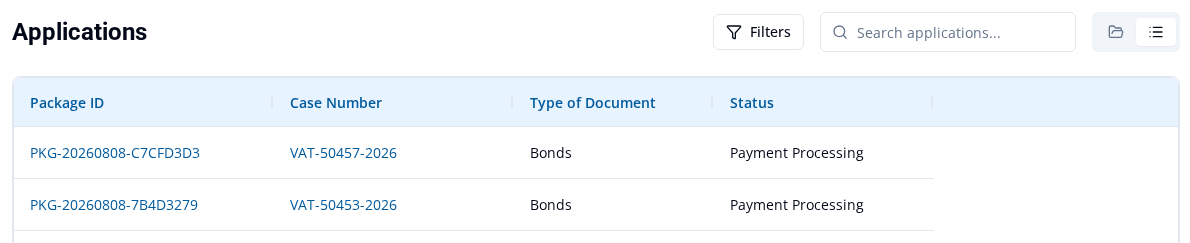
The two icon controls have the names Package View and Case View.
- Select Package View to group related cases under each package. Expand a package to see its case rows. The search example above uses this view.
- Select Case View to show each case as its own row.
Open a submitted case
- Select Case View.
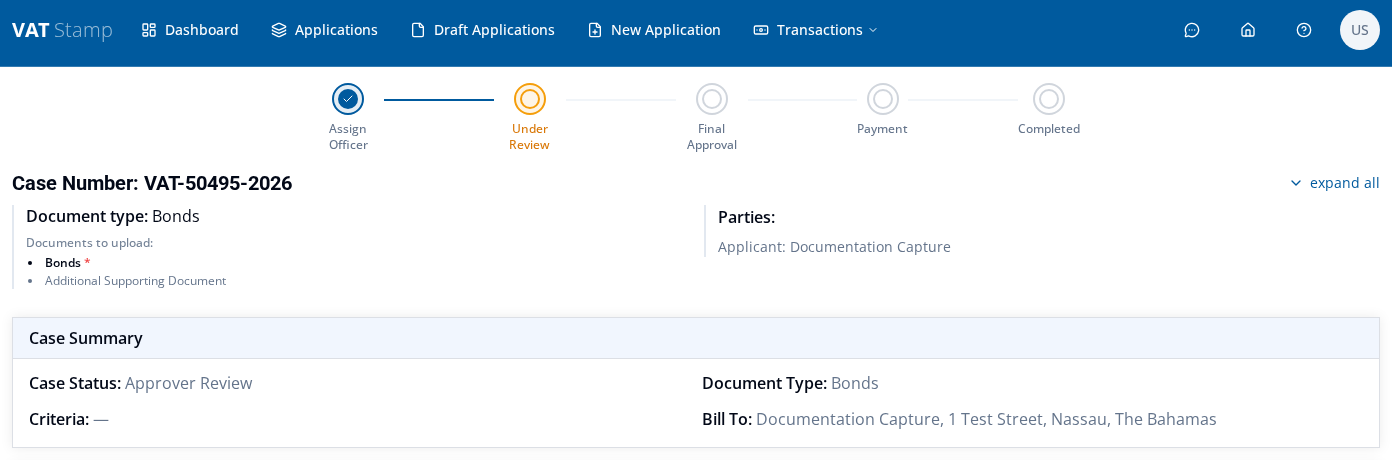
- Select the application's case number.
- Check the case's progress and its Case Summary section.
The submitted view is for checking, not editing. It shows the case's progress and details. It does not offer Save as Draft or Ready to Submit.
If a case is returned to you for changes, see Revise and resubmit a returned application.
Choose the correct area
- Open Draft Applications to continue, add to, submit, or delete unsubmitted work.
- Open Applications to filter, search, and check work you have already submitted.
The two areas prevent two common mix-ups. To continue unsubmitted work, go to Draft Applications, not Applications. And Ready To Submit does not mean submitted. If you cannot find your work in Applications, its package is probably still in Draft Applications.