Before you start
A package can hold more than one application. Each application covers one document. Keep the documents for one transaction in one package. You submit them together.
You can add an application only while the package is still a draft. Find your unsubmitted packages in Draft Applications.
Add the application
- Select Draft Applications on the top navigation bar.
- Find the package that needs another application.
-
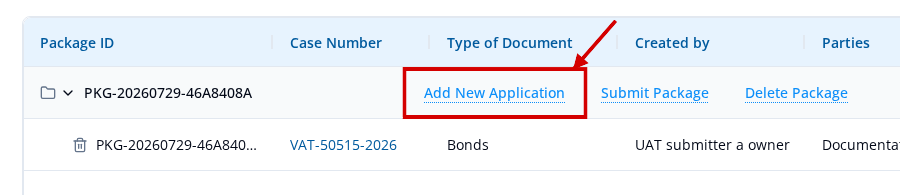
Select Add New Application on the package row.
-
Select the Document Type for the new document. In this example, Bonds is selected. The page shows Adding case to existing package. The new application joins your existing package, not a new one.
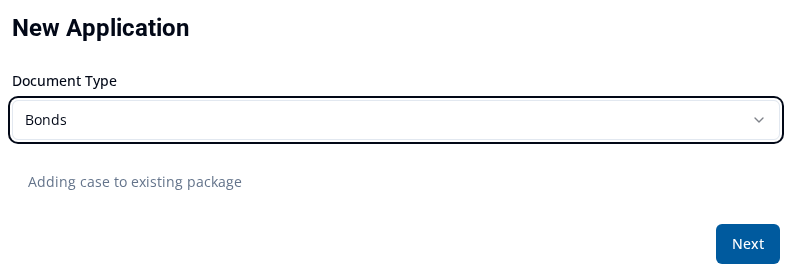
- Select Next. The portal creates the new application and opens its form.
- Enter the details for the new application. For help with the form, see Complete fields for your document type.
What happens next
The new application starts in Draft status. It stays in the same package as your other applications. The package row now lists both applications.
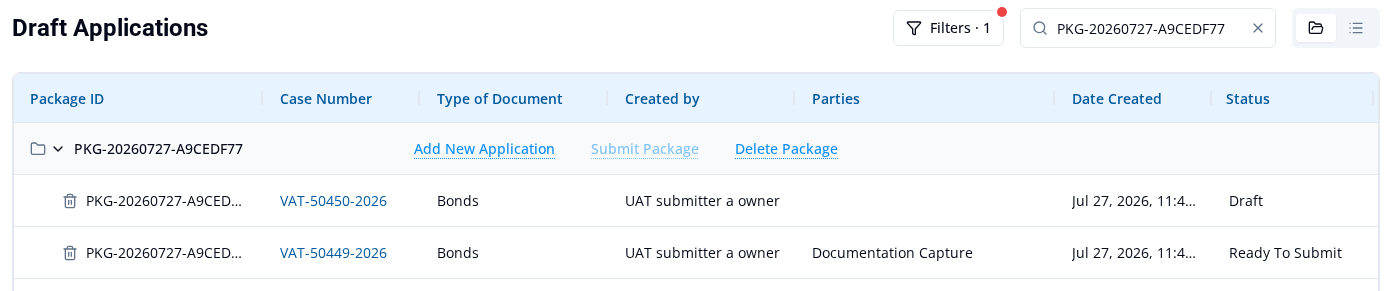
Submit Package stays unavailable while any application in the package is still Draft. Every application must be Ready To Submit before you can submit the package. To make an application ready, see Mark an application Ready To Submit.
You cannot add an application to a package after you submit it. If an application is returned to you, follow Revise and resubmit a returned application.