Before you start
A VAT Stamp package can hold one or more applications. Each application covers one document and has its own form and details. The package groups your related applications so you can submit them together. You submit the package, not each application on its own.
For example, a property sale may have a conveyance and a mortgage. Create one application for the conveyance and one application for the mortgage. Keep both applications in the same package so you can submit them together.
An application can also ask for supporting documents. Upload them inside the application. They do not need their own applications.
Start an application
- Open the VAT Stamp portal.
-
Select New Application on the top navigation bar.

-
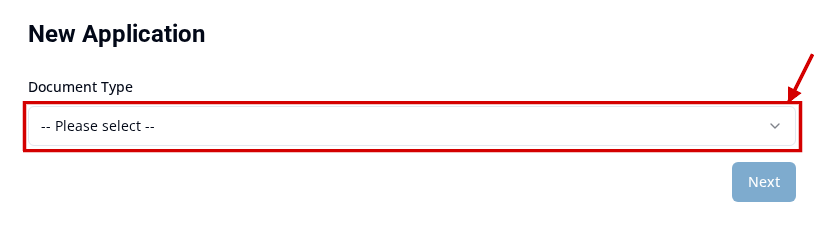
Select the Document Type that matches your document. The document type controls which details and documents the form asks for.
-
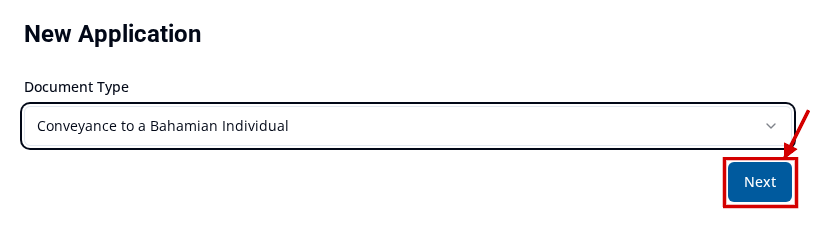
Select Next. The Next button stays unavailable until you select a document type.
-
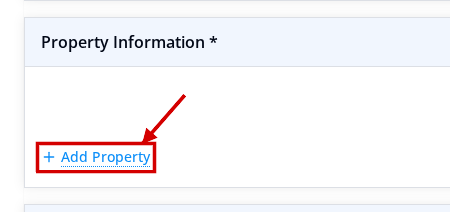
Enter the information you have. The form lists the details, questions, and documents that your document type needs. For example, a conveyance form asks for property details. Select Add Property to add each property.
-
Select Save as Draft to finish the application later, or select Ready to Submit when it is complete. Ready to Submit does not submit the package.

To learn more, see Save an application as a draft and Mark an application Ready To Submit.
What happens next
When you select Next, the portal creates your application. It gives the application a case number. The portal also creates a package for it, or uses your existing draft package.
The application starts in Draft status. Draft means the application has not been submitted. You can still review it, add details, and upload documents. Creating an application does not send the package for review.
Marking an application Ready to Submit does not submit it. The application waits until you submit the whole package. Every application in the package must be Ready to Submit first. If you edit and save the application before the package is submitted, it can return to Draft. You may need to mark it Ready to Submit again.
To add another document to the same package, see Add another application to a draft package.